
How to Fix IPTV Buffering & Freezing in the USA: 7 Proven Engineering Fixes (2026)
There is nothing more exasperating than a video stream spinning endlessly during the final two minutes of an NFL playoff drive. Even households equipped with 500 Mbps or 1 Gbps fiber internet experience unexpected buffering. This guide unpacks the real network science behind stream freezing and delivers 7 proven engineering fixes.
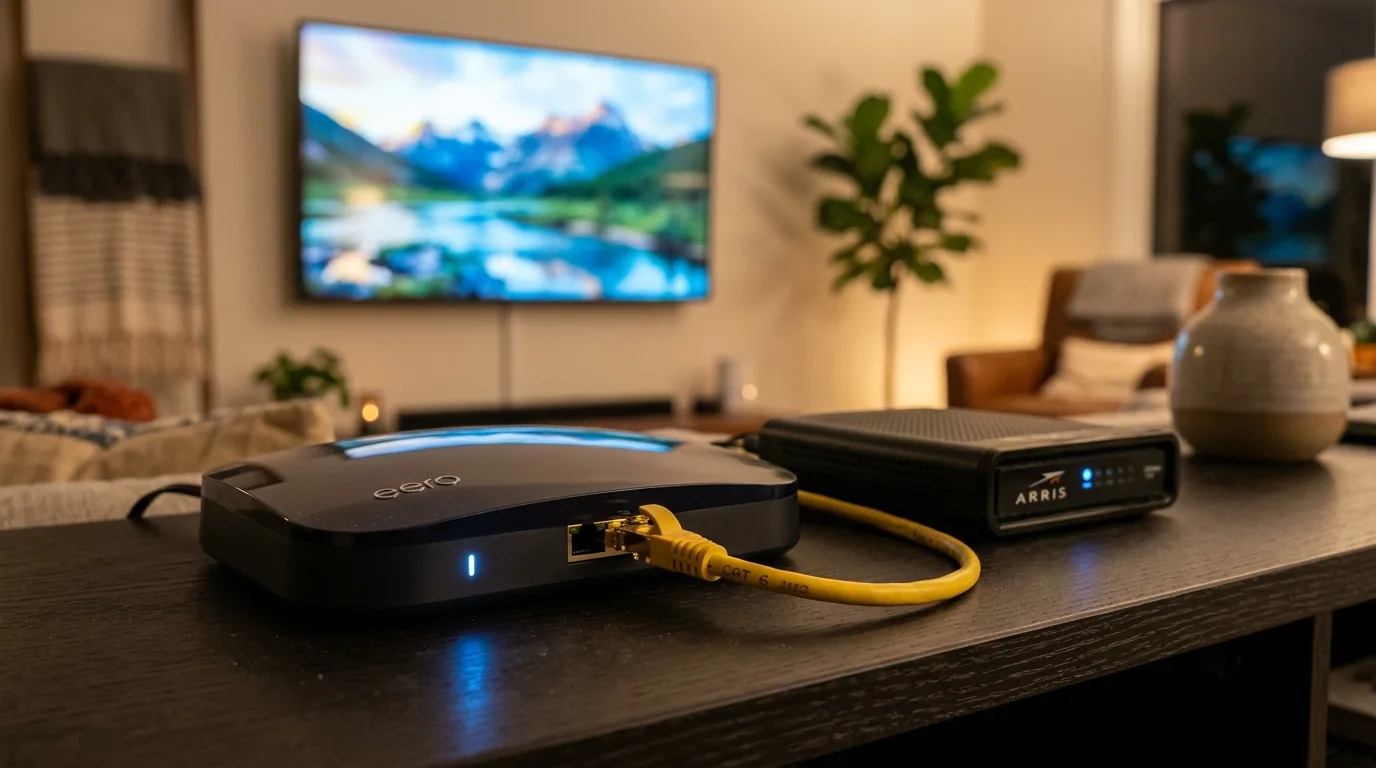
If your IPTV stream is buffering right now, execute these five actions in order: (1) Switch your streaming device from saturated 2.4GHz Wi-Fi to 5GHz or Ethernet; (2) Change your router or Firestick DNS to Cloudflare (1.1.1.1 / 1.0.0.1) to bypass ISP packet inspection; (3) In your IPTV player (TiviMate), set the Buffer Size to Medium (5 seconds); (4) Clear the application cache in Firestick settings; and (5) Ensure you are on a provider with Anti-Freeze 9.8™ multi-CDN redundancy.
The Streaming Paradox: Why 500 Mbps Internet Can Still Buffer
The most frequent complaint among American streamers is: "I just ran a speed test and have 400 Mbps down on Spectrum/Comcast, so why is my IPTV freezing?"
Standard browser speed tests (like fast.com or generic HTML5 testers) measure burst bandwidth across a 10-second window using TCP connections to local carrier test nodes. ISPs actively prioritize and accelerate these test ports to produce glowing speed ratings.
Live IPTV, however, operates on a fundamentally different transmission model. A live 4K 60FPS sports stream pushes a continuous, relentless stream of UDP and HLS video chunks for 3 to 4 hours. Video playback doesn’t care about your peak burst speed; it requires zero packet loss, ultra-low jitter (under 15ms), and sustained throughput. If 2% of packets drop due to Wi-Fi interference or ISP traffic shaping, the media player runs out of frames and freezes.
IPTV Buffering Diagnosis: Symptom vs. Underlying Cause vs. Solution
Pinpoint your exact playback symptom to apply the corresponding engineering fix:
| Observed Symptom | Underlying Network Cause | Engineering Solution | Est. Fix Time |
|---|---|---|---|
| Buffers only on Sunday NFL / UFC events | ISP Deep Packet Inspection (DPI) Throttling | Encrypted DNS (1.1.1.1) or WireGuard | 2 Minutes |
| Audio plays smoothly while video freezes/stutters | Software Decoder CPU saturation / Thermal throttling | Switch decoder to Hardware (ExoPlayer) | 30 Seconds |
| Brief 1-second freeze every 10 to 15 seconds | 2.4GHz Wi-Fi microwave/co-channel interference | Migrate to 5GHz Wi-Fi or Ethernet adapter | 1 Minute |
| Player crashes or slows down navigating EPG | Firestick RAM depleted by stale image thumbnails | Clear App Cache in Fire OS Application Settings | 1 Minute |
| All channels fail to connect ("Playback Error") | ISP default DNS poisoning or domain resolution block | Set DNS to Cloudflare 1.1.1.1 / 1.0.0.1 | 2 Minutes |
The 7 Proven Engineering Fixes in Detail
Bypass ISP Video Throttling with Cloudflare 1.1.1.1 Public DNS
By default, your home router routes all internet traffic through your broadband provider’s DNS resolver (Comcast, Spectrum, Cox, or AT&T). These servers log your connection handshakes and throttle ports receiving high-bitrate video.
Switching your router or Firestick DNS to Cloudflare’s privacy-focused 1.1.1.1 resolver reduces DNS resolution latency to under 12 milliseconds and prevents local ISP filtering:
Abandon 2.4GHz: Connect to 5GHz Wi-Fi or Ethernet
In American apartment complexes and residential neighborhoods, the 2.4GHz frequency spectrum is overwhelmed by dozens of overlapping router beacons, Bluetooth devices, and microwaves. Even with "full Wi-Fi bars," 2.4GHz suffers severe packet collisions that stall 4K 60FPS video.
Split your home Wi-Fi bands into distinct SSIDs (e.g., HomeNetwork_5G) and connect your Firestick exclusively to the 5GHz or Wi-Fi 6 channel. If distance from your router is significant, invest in an official Amazon Ethernet Adapter for Fire TV to achieve zero-latency wired stability.
Calibrate Media Player Playback Buffer to "Medium" (5 Seconds)
Most default media players operate with a razor-thin 1-second packet buffer. If your wireless connection drops packets for just 1.1 seconds, the stream freezes to reload.
In TiviMate, navigate to Settings > Playback > Buffer Size and change from None to Medium (approx. 5 seconds). This builds a 5-second video reserve in your Firestick memory. If your connection encounters a brief micro-drop, the player draws from the buffer seamlessly without a single dropped frame.
Test and Eliminate Router "Bufferbloat"
Bufferbloat is high latency caused by a home router holding excess data in oversized internal buffers during simultaneous household usage. If someone in your home starts a game download while you stream live sports, your router queues streaming packets, causing ping to spike to 300ms+.
Test your network under load using the latency diagnostics on Speedtest by Ookla. If your loaded ping is graded C, D, or F, enable Smart Queue Management (SQM) or QoS in your router settings to prioritize real-time video packets over background downloads.
Clear Firestick System & Application Cache
Amazon Firesticks possess limited physical memory (1GB to 2GB). Over weeks of use, media players accumulate hundreds of megabytes of cached channel logos, guide data, and preview clips. When RAM runs low, Fire OS throttles CPU cycles.
Navigate to Settings > Applications > Manage Installed Applications, click your IPTV player, and select Clear Cache. (Caution: Never click "Clear Data" unless you want to erase your account credentials).
Enable Hardware Video Decoding (ExoPlayer GPU Acceleration)
When an IPTV player is set to Software decoding, your Firestick’s small CPU core decodes H.265/HEVC video frames manually. This causes the device to heat up rapidly and throttle playback speed.
Verify that your player is set to Hardware Decoding under Playback settings. This hands over decompression directly to the dedicated GPU chip, allowing smooth 4K 60FPS playback with zero processor heat build-up.
Upgrade to Dedicated Anti-Freeze 9.8™ Server Architecture
If you have resolved your local Wi-Fi, DNS, and player buffer settings and streams still freeze during major sporting events, the fault lies squarely with your service provider. Cheap, oversold IPTV services host thousands of users on a single unmanaged server. When peak events start, their bandwidth saturates and streams drop.
BestIPTV US is powered by proprietary Anti-Freeze 9.8™ load-balancing nodes deployed in New York, Chicago, Dallas, and Los Angeles. When local network congestion occurs, incoming connections dynamically route to uncongested 10 Gbps fiber backbones, ensuring 99.9% rock-solid uptime.
Explore More Streaming Optimization Guides:
Frequently Asked Questions
Why does my IPTV buffer when my Speedtest shows 400 Mbps?
Speed tests measure brief 5-to-10 second bursts of TCP data to a nearby server, which your ISP prioritizes. Live IPTV streaming relies on continuous, uninterrupted UDP/HLS packet transmission for hours. If your network suffers from jitter spikes, packet loss, or ISP deep packet inspection, streams will freeze regardless of nominal download speed.
Do American ISPs deliberately throttle IPTV streams during big games?
Yes. Major US broadband providers utilize automated traffic-shaping algorithms during peak internet hours (especially Sunday afternoon NFL games and Saturday night UFC events). When thousands of local connections in your neighborhood stream high-bitrate video, ISPs deprioritize unmanaged streaming ports to prevent local CMTS node collapse.
How does changing DNS to Cloudflare 1.1.1.1 stop buffering?
Your ISP’s default DNS servers are frequently overloaded and actively monitored. By configuring your router or Firestick to use Cloudflare (1.1.1.1 / 1.0.0.1) or Google Public DNS (8.8.8.8), hostnames resolve in under 12ms and connection handshakes bypass ISP DNS inspection filters.
What is the optimal buffer size in TiviMate for live sports?
Set the buffer size to "Medium" (approx. 5 seconds) under Settings > Playback. Setting it to "None" causes immediate stuttering whenever a Wi-Fi packet drops, while setting it to "Large" (10s) increases initial channel zapping time. Medium provides the ideal balance of fast switching and buffer protection.
What is bufferbloat, and how do I test for it?
Bufferbloat occurs when your home router excessively buffers data packets during high-bandwidth usage, causing latency to surge from 15ms to over 300ms. You can test your network using Waveform or Ookla Speedtest loaded latency tests. If your loaded ping is high, enabling Smart Queue Management (SQM) on your router eliminates it completely.
Can a simple Firestick reboot fix buffering?
Yes. Firesticks have limited RAM (1GB to 2GB). Over time, background processes and cached video thumbnails fragment active memory. A quick reboot (holding Select + Play/Pause on the remote for 5 seconds) flushes system RAM and restores peak GPU decoding speed.
How does BestIPTV US Anti-Freeze 9.8™ technology work?
Anti-Freeze 9.8™ is a proprietary multi-transit load balancer deployed across tier-1 American data centers. If one transit carrier experiences congestion or packet degradation, the system automatically redirects stream packets to redundant backup nodes in milliseconds without interrupting playback.
Ready to Upgrade Your TV Experience?
Enjoy smooth IPTV streaming on all your devices with fast setup and reliable performance.